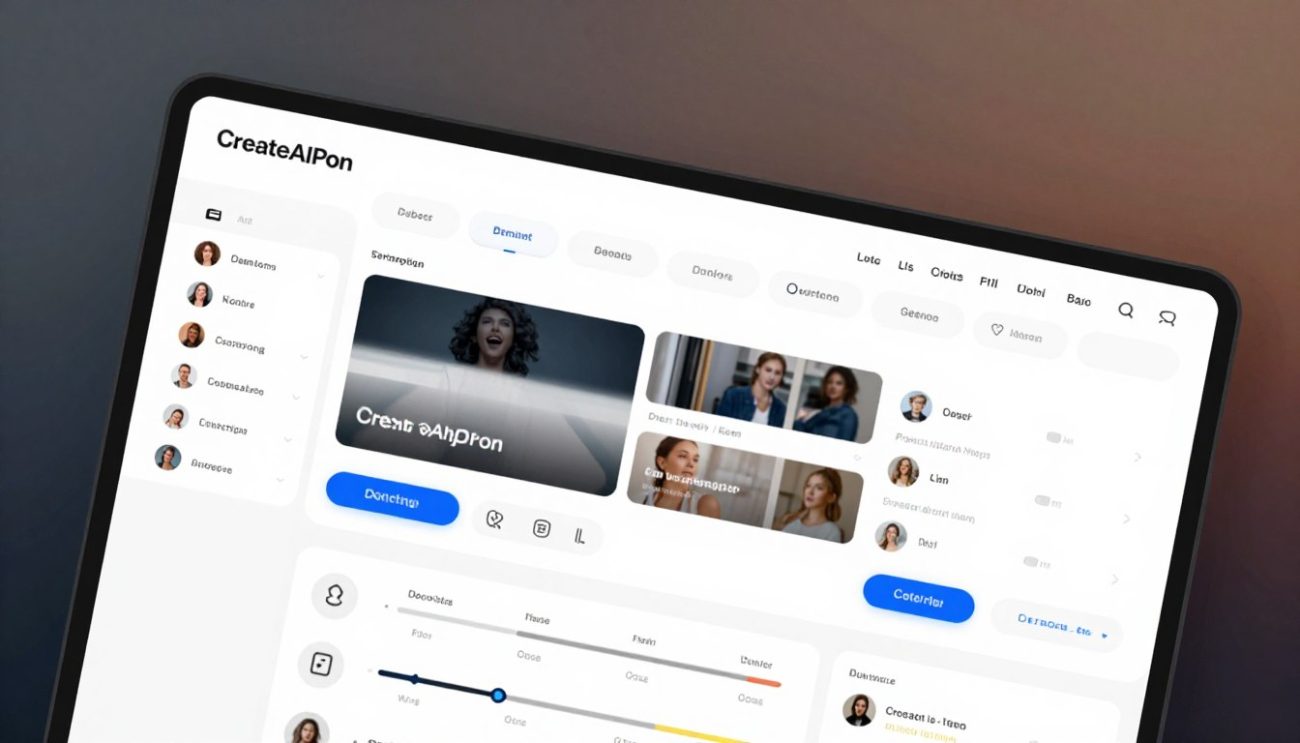
Ready to unlock a powerful creation suite for adult content? You’ll find a clear walkthrough that helps you master each panel of the CreateAIPorn interface.
This introduction maps what you can do with over 7 million characters, quick image and video generation, and layered controls for style, mood, and details.
You’ll learn how the platform turns imagination into vivid images, video scenes, and art. The tools suit both anime and hyper-realistic styles.
Whether you want fast free images to test features or deep control over characters and scenes, this guide shows you where to find each option.
Expect practical tips on privacy, handling nsfw content, and using image video and video generation tools to bring static shots to life.
Key Takeaways
- You can explore millions of characters to build unique adult content creations.
- The interface supports quick image and video generation for fast results.
- Controls let you tweak styles, details, and character traits for realistic output.
- Ten free images are available at sign-up to test features immediately.
- Privacy and safety settings help you manage nsfw content responsibly.
Understanding the CreateAIPorn Interface Guide
A clear view of each panel helps you turn simple prompts into consistent adult content.
The interface acts as a bridge between your ideas and the tools that make images and video. Modern artificial intelligence platforms now handle anatomy, lighting, and scene composition so you can focus on creativity.
Core benefits: quick previews, layered controls for characters, and presets that speed up workflow. These platforms simplify complex tasks so both newcomers and pros produce high-quality results.
- Manage nsfw projects with clear panels and privacy controls.
- Adjust style, pose, and lighting from single screens.
- Export images and short clips without extra software.
“Learn the layout first — it makes the rest of the process faster and more reliable.”
| Panel | Function | Why it matters |
|---|---|---|
| Prompt & Presets | Compose text and choose styles | Saves time and keeps output consistent |
| Character Library | Select and edit characters | Ensures repeatable looks across images |
| Scene & Lighting | Set mood, props, and depth | Improves realism in images and video |
| Privacy & Export | Control sharing and file types | Protects your work and workflow |
Getting Started with Your First AI Porn Generator Tutorial
Begin with a quick sign-up and you’ll be ready to produce your first adult images in minutes.
Account Setup
Account Setup
Create your free account using an email and a secure password. Verification is fast, so you can move on without delay.
Once registered, set basic privacy options. These steps help protect your private nsfw art and video projects from unwanted sharing.
Initial Credits
Initial Credits
New users receive 10 free images to test creation workflows and explore styles. Use them to learn how prompts shape results.
- Manage credits from your dashboard to track use and avoid surprises.
- Experiment with characters, poses, and fantasy scenes to refine output.
- Save your best runs to the private gallery as you build an experience library.
Navigating the Main Generation Panel
Use the central generation hub to enter prompts and fine-tune the look and tone of your images and video. This panel is the control center for your adult content creation.
Prompting Basics
Start by typing a clear prompt that names characters, setting, and mood. Short, specific prompts help the system produce consistent images and scenes.
The panel offers features to refine output. Use negative prompts to exclude unwanted items. Toggle style presets to shift between realistic and stylized looks.
- Prompt box: define characters, props, and scene lighting.
- Settings box: change image format, resolution, and quality.
- NSFW toggle: switch modes to match the type of adult content you want.
- Character manager: save and reuse character profiles for consistent results.
Quick iteration is built in. Generate multiple variations, compare images, and lock a favorite to keep features consistent across subsequent runs. Mastering these controls speeds up your workflow and improves final output.
Tip: Balance prompt detail with concise settings. Too many constraints can limit creative variations, while clear, targeted prompts guide reliable generation.
Customizing Characters and Scenes
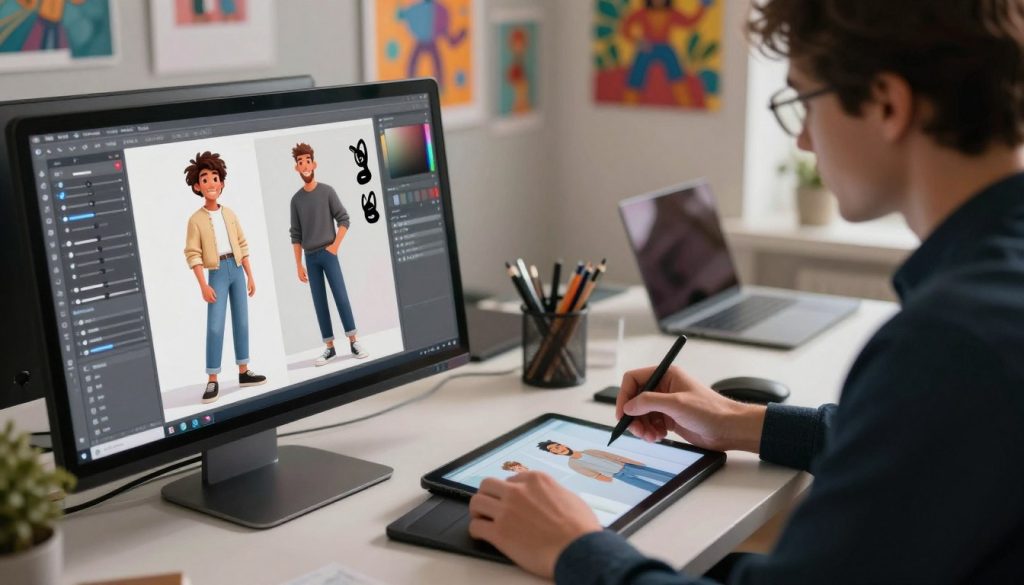
Custom controls let you shape each look, outfit, and pose to match your vision. Use presets to speed setup, then tweak finer settings for unique results.
Character Selection
The character panel gives access to over 7M+ characters. You can filter by body type, face, and genre to find the right model fast.
Save profiles to replicate looks across multiple images and video projects. This keeps your work consistent and efficient.
Outfit and Pose Presets
Choose from more than 570 presets for outfits and poses. Mix presets to build complex scenes without manual rigging or lengthy edits.
Quick swaps let you test variations and lock favorites for later runs.
Style Adjustments
Tweak style sliders to move between realistic, painterly, or anime and hentai art. Small changes to lighting and color shift mood dramatically.
Pro tip: combine style presets with saved characters to maintain visual coherence across all creations.
| Feature | Why it helps | Best use |
|---|---|---|
| Character Library | Fast selection from millions | Find specific looks quickly |
| Preset Packs | 570+ outfits and poses | Build scenes in minutes |
| Style Sliders | Control mood and finish | Switch between anime and realistic |
Advanced Settings for High-Quality Output
Pro settings unlock higher monthly generations and tools that refine clarity, composition, and motion.
You can access up to 2,500 image generations per month on the top subscription tier. That capacity is ideal when you need many variations and high throughput for image and video projects.
The platform includes image upscaling and fine-tuning tools to boost resolution and sharpness. Use these to turn a good render into a publishable, high-resolution result.
Adjust the prompt and negative prompt boxes to filter unwanted elements and keep details consistent. Small edits to prompts yield big improvements in anatomy, lighting, and style.
Balance speed and quality by changing generation settings. Slower, high-quality runs improve texture and realism, while faster passes help you iterate ideas.
- Upscaling: enhances resolution for prints and HD exports.
- Granular controls: tweak lighting, physics, and anatomy for realism.
- Consistency tools: lock characters and style to match images and video.
Mastering these features helps you produce professional-grade ai-generated adult content. Apply technical precision without losing creative freedom to get the best results from image video and video generation workflows.
Managing Your Private Gallery and Video Creations
Store and manage every image and clip in a secure gallery that you control. Your private area holds all adult content and keeps generated images and videos private and accessible only to you.
From single images to multi-scene clips
You can turn any still into a high-definition video in just two clicks. The tool lets you add up to 10 scenes in one clip for smooth storytelling.
Use simple video generation controls to tweak frame rate, quality, and scene transitions. This helps your image video feel natural and professional.
Keep things organized: tag creations, sort by date or character, and lock private files to prevent accidental sharing.
- Organize porn images and clips for fast reuse.
- Experiment with video settings to raise overall quality.
- Curate a portfolio to track progress and refine scenes over time.
Mastering gallery tools ensures your nsfw art and anime-inspired creations stay secure while you expand your creation skills.
Comparing Platform Features for Better Results
Compare features side-by-side to see which platforms best support image and video workflows.
Why compare? You want speed, consistent characters, and output quality that fits your vision.
- Character depth: Look for detailed editing and saved profiles to keep looks consistent.
- Video support: Check scene limits, frame control, and export options for smooth clips.
- Price vs value: Free porn options help you test tools, but premium tiers boost quality and throughput.
- Style range: Platforms that handle anime, hentai, and realistic styles give more creative freedom.
| Platform | Strength | Scale |
|---|---|---|
| Promptchan.ai | Flexible tools and new features | Fast-growing (founded May 2024) |
| PORNX | High traffic and robustness | 4M users/month |
| CreateAIPorn | Deep character controls and export | Balanced for images and video |
Bottom line: Compare features, test free options, and pick the platform that matches your creativity and desired output quality for adult content and nsfw art.
Conclusion
Bring everything together by mastering character, scene, and export controls for steady results.
Key advantages: consistent characters, easy scene tweaks, and fast HD exports help you produce publishable images and clips.
Use the secure gallery to keep your work private. Lock files, tag projects, and store versions so you can revisit and refine safely.
Stay current with platform updates and compare tools to keep access to the best creation features. Test different prompts and styles to expand your visual range.
With practice, you’ll build repeatable workflows that turn ideas into high-quality adult content while protecting your privacy and time.
FAQ
What does the CreateAIPorn interface include and how do I navigate each panel?
The interface groups tools into clear panels: account info, credit balance, the main generation workspace, presets for characters and scenes, style adjustments, and an export/gallery area. You can open each panel from the left sidebar. Hover over icons to see quick tooltips, and use the top toolbar to switch between still image and video modes. Focus first on the main generation workspace to build a prompt, then refine using character and scene panels.
How do I set up my account and manage initial credits?
Create your account with an email and a secure password, verify your address, and choose a subscription or pay-as-you-go option. Initial credits are added after purchase; check your balance in the Account panel. Credits apply to each creation based on resolution and length. You can top up credits via the billing section or select free trials if available.
What are the prompting basics to get consistent, high-quality results?
Write concise, specific prompts that name style, scene, character traits, and composition. Use clear adjectives (e.g., lighting, camera angle, mood). Start with a broad concept, then add details in order of importance. Save effective prompts as templates to reproduce results. Avoid vague or overly long prompts to keep output consistent.
How do I select and customize characters effectively?
Use the Character Selection panel to pick base models by age-appearance, ethnicity, and body type. After choosing a base, open the customization tab to tweak facial features, hair, and proportions. Save custom characters to your library for reuse. Respect platform rules and real-person likeness restrictions when customizing faces.
What controls do I have for outfits and pose presets?
The Outfit and Pose Presets panel offers categories like casual, formal, fantasy, and action. Select a preset to apply clothing and stance instantly. You can further adjust pose rigging, limb angles, and expression sliders. Combine presets with manual adjustments for unique looks and natural positioning.
How can you adjust style settings to change the final look?
Style Adjustments let you choose artistic direction: photoreal, anime, comic, or painterly. Tweak color grading, grain, sharpness, and detail level. Use style intensity sliders to blend multiple aesthetics. Small incremental changes produce more predictable improvements than extreme jumps.
What advanced settings improve output quality for images and video?
Advanced options include resolution, sampling steps, and denoise strength for images; frame rate, interpolation method, and motion smoothing for video. Increase sampling and resolution for finer detail, but expect higher credit usage and longer render times. For video, enable frame-coherence or motion vectors to reduce jitter.
How do you convert stills into HD video within the platform?
Use the “Stills to Video” tool in the gallery. Import keyframes or a sequence of saved images, set frame duration, and choose interpolation (optical flow or AI in-betweening). Select target resolution and bitrate, then render. Preview low-res drafts to check motion before committing credits for full HD export.
How is your private gallery organized and secured?
The private gallery stores images, project files, and rendered videos in folders you create. Set folder privacy, add password protection, and enable two-factor authentication on your account. Export and download options let you keep local backups. Review retention and deletion policies in account settings.
How do platform features compare when seeking the best results?
Compare platforms on model quality, style versatility, rendering speed, price per credit, and content policy. Test a short sequence on multiple services to evaluate color accuracy, artifact levels, and motion stability. Also consider user controls, template libraries, and community resources when choosing a provider.
